Blog

Add Assets to Your Digital Twin Without Live Tracking

Place a truck, pallet, or asset by hand. It shows up in 2D and 3D, you can simulate movement, and you get analytics and no-go notifications on top - no live tracking required for that asset.

  • Patrik Pasko

  • August 26, 2026

twinzo logistics analytics on a phone
Add Assets to Your Digital Twin Without Live Tracking

Supplier Truck Coming In, No Tag

External suppliers do not wear your RTLS tags. The truck is still coming, and operators still need to know where it is.

Add it in twinzo, place it on the map. It appears in 3D. Dispatch, the dock, and the hall all see the same position.

That is the whole point: things that are not live-tracked can still sit on the digital twin, so people stop calling around to find them. You do not wait for a tag, a gateway, or an integration from the carrier. You put the truck where it is, or where it will be, and the floor works from that picture.

Typical moment: gate calls that a supplier is at the yard. Logistics drops the truck on the twin at the gate or the assigned dock. Forklift drivers open the 3D view on a phone or tablet and go there. No radio chain, no whiteboard at the office door.

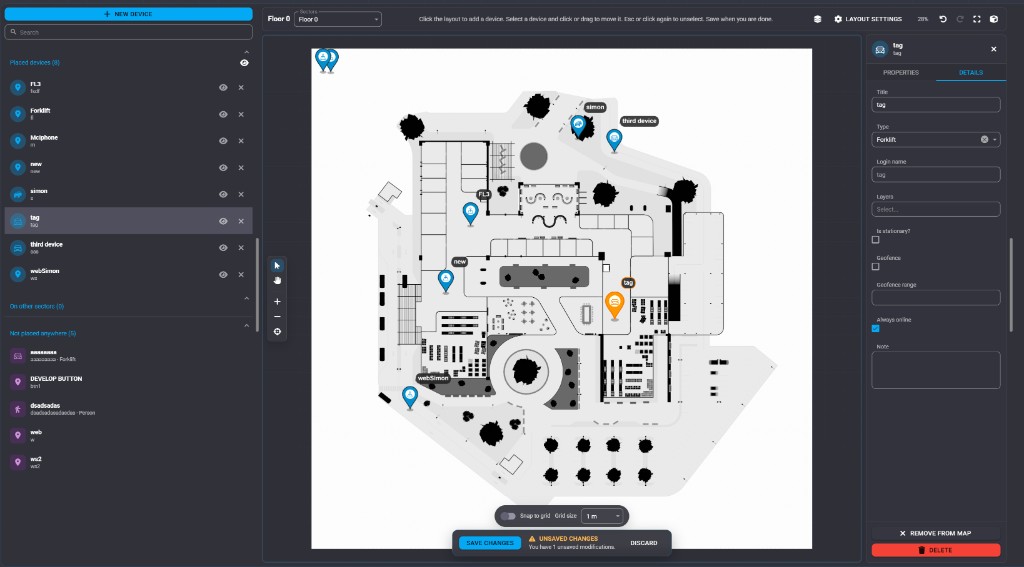
Add a device on the twinzo floor plan: choose type, place it on the map, save

Stock Positions of Important Goods

Same for materials. Critical parts, WIP, pallets in a buffer - you know where they sit, even if they have no tracker.

Set the position on the floor plan. Operators and planners see stock locations on the twin instead of walking the aisle or asking warehouse.

When the goods move, update the pin. The 3D model stays the shared picture of what is where.

This is useful when live tracking every SKU is overkill, but a few positions actually matter: a shortage part, a blocked buffer, a pallet that must not disappear into a side aisle. Place those, leave the rest in WMS. People look at the twin for the goods that stop the line.

How to Place an Asset

In the positions workspace:

1. Create a device - name it (supplier truck, SKU, pallet, forklift).

2. Choose the asset type - truck, material, or whatever fits.

3. Place it on the floor plan - gate, dock, buffer, rack, staging point.

4. Save - it is on the twin. No live tag attached.

Placed devices stay on the map. Anything created but not positioned yet sits under Not placed anywhere until you drop it on the layout.

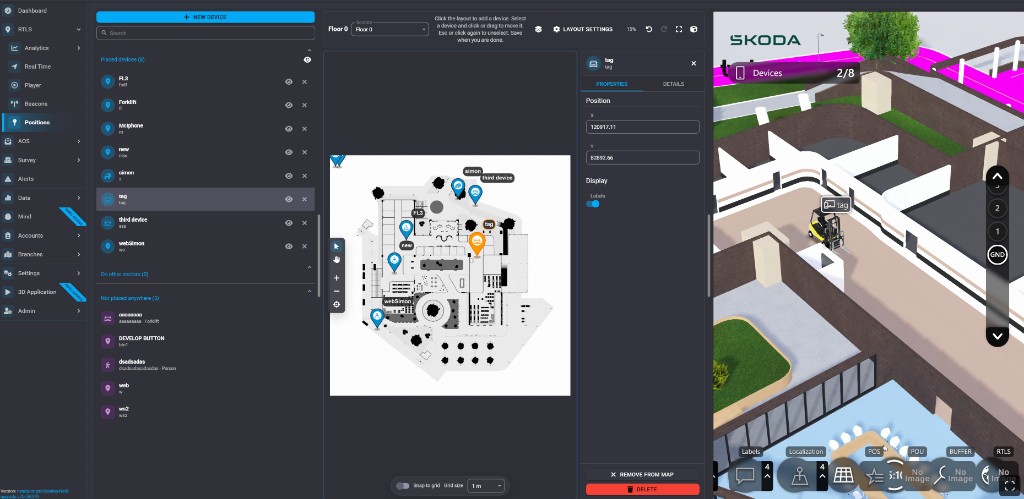
Same Asset on the 2D Map and in 3D

One placement drives both views: 2D floor plan and 3D hall. Same label, type, and location.

Planners work from the layout. Operators check the model. Nobody maintains two pictures of the same truck or pallet.

Placed asset visible on the 2D map and in the twinzo 3D digital twin

Mix 3D Scans, CAD, and Blender Meshes

The truck or pallet is only useful if it sits in a facility people recognize. twinzo does not force one modeling pipeline. You can bring different 3D sources and combine them in one twin.

• 3D scans - LiDAR or photogrammetry of the hall as it actually looks: racks, columns, clutter.

• CAD models - walls, machines, layout from engineering, with real dimensions.

Blender meshes - custom assets, simplified halls, or geometry you already have from visualization work.

Mix them. Scan the brownfield hall, drop a CAD line next to it, add a Blender truck or machine where the scan is messy. Operators still see one 3D scene. The placed supplier truck and the stock pin land on that combined model, not on a separate toy layout.

If you already have scans, CAD, or meshes, you do not start over. Integrate what you have.

Simulate Movement, Then Run Analytics

Placement is the start. You can also move the asset along the path it will take - or the path it already took.

Supplier truck: gate → yard → dock → wait → leave. Forklift loop. Pallet from inbound to the buffer that feeds the line. You replay or plan the motion in the same twin where live-tracked assets already run.

Because the asset is a first-class position in twinzo, analytics sit on top of that simulated path the same way they sit on live tracking. You are not drawing a pretty line and stopping there.

Area occurrence is the obvious one. Which areas did the truck enter? How long in the yard, at the dock, in a restricted aisle? Compare that to tagged traffic in the same zones. You see congestion, dwell, and whether an untracked visit is eating capacity you thought was free.

Use it after a visit you did not tag, or before a new supplier flow goes live. Place, simulate, read the areas. Then decide if the route is acceptable.

Notify When It Enters a No-Go Area

You already draw areas on the twin: docks, buffers, pedestrian paths, no-go zones. The placed or simulated asset can hit those areas too.

Set a no-go (pedestrian lane, production cell, fire route, visitor-only yard). If the truck, forklift, or material enters it - live or simulated - twinzo can trigger a notification. App, email, whoever owns that zone.

That is the same notification path you use for tracked devices. Untracked does not mean invisible to rules. A supplier truck parked across a fire lane, or a pallet dropped in a walkway, can still raise an alert instead of waiting for someone to notice on camera.

For trials, simulate the route first. If area occurrence shows time in a no-go, fix the path before the real truck arrives. For operations, keep the rule on: if someone places or moves an asset into a forbidden zone, the right people hear it.

Other Cases: Forklifts, Tuggers, Temporary Assets

Anything you want on the twin, without tagging it first:

• Borrowed forklift for one shift - put it on the map so people know which hall it is in.

• Tugger on a trial route - place it, simulate the loop, check area occurrence, then decide on permanent tracking.

• Visitor vehicle at the gate - visible to security and logistics without a tag. No-go rules still apply if it leaves the visitor lane.

• Reconstruct yesterday's visit - drop it where it was, move it along the path, run the same analytics as a tagged run.

Try It on the Next Untracked Asset

Next supplier truck, buffer of critical parts, or temporary vehicle: add it, place it on your combined 3D model, simulate the path if you need it, and let the floor see it.

No live tracking required for that asset. You still get area occurrence and no-go notifications on top.

Related: live 3D stock from ERP without RTLS and twinzo features. Get in touch if you want to walk through this on your own facility model.

You might also be interested in:

SLAM Localization: Sensors, Algorithms, and Industrial Providers

SLAM Localization: Sensors, Algorithms, and Industrial Providers

How visual, visual-inertial, and LiDAR SLAM estimate pose and map in GPS-denied halls. Front-end tracking, loop closure, map alignment, and providers including Slamcore.

Read more
Live 3D Stock From ERP Without Installing RTLS

Live 3D Stock From ERP Without Installing RTLS

In IKEA you find stock by coordinates like 13-B. Same in industrial warehouses. Feed those locations to twinzo for real-time 3D stock positions - no RTLS infrastructure.

Read more

Landscape mode is not supported, please rotate your device.

By clicking “Accept”, you agree to the storing of cookies on your device to enhance site navigation, analyze site usage, and assist in our marketing efforts. View our Privacy Policy for more information.